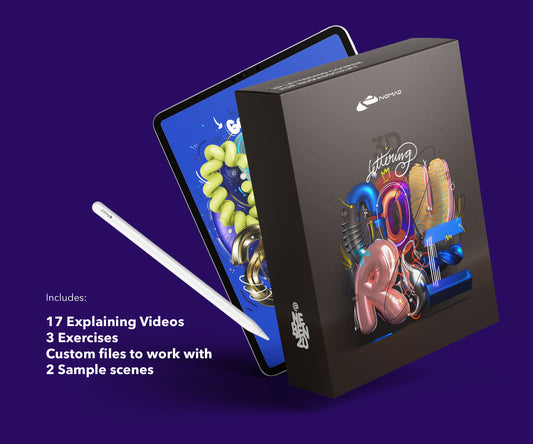
This is the guide I wish I had when I started Nomad Sculpt. Not a feature tour. Not a manual. Just the steps to go from opening the app to finishing your first 3D piece on iPad.
Setting up the scene
Open Nomad Sculpt. You get a default sphere. Delete it (long press in the scene menu). We're starting from scratch.
Add a plane as your base. Then add a primitive for your first shape. I'd start with a cube or cylinder, depending on what you want to make. For a first project, keep it simple: a piece of 3D text, an abstract form, or a basic object.
Basic tools you need
Move tool: push and pull the surface. This is your most-used tool.
Clay tool: add volume. Build up areas that need more mass.
Smooth tool: clean up rough areas. Hold the smooth shortcut while sculpting to blend as you go.
Trim tool: cut flat planes into your shape. Useful for hard edges and geometric forms.
That's it for now. Four tools. Don't try to learn all 50+ brushes at once.
Shaping your first piece
Work big to small. Get the overall shape right first. Rotate your view constantly. Check every angle. A shape that looks good from the front might be flat or distorted from the side.
Use symmetry if your shape allows it. Toggle it on in the symmetry menu. Build one side, the other mirrors automatically.
Don't zoom in too early. Stay zoomed out until the big proportions work. Detail comes last.
Adding material
Open the Material Menu (sphere icon). Start with something simple: bump up the metallic slider for a chrome look, or drop roughness to zero for a glossy surface.
Turn on triplanar mapping. This prevents textures from stretching on curved surfaces. It's in the material settings. Turn it on, leave it on.
Even a basic material makes your piece look 10 times better than flat grey. Apply early, adjust later.
Lighting
Go to the lighting panel. Add an HDRI environment. This gives your scene realistic reflections and ambient light.
Add at least one directional light for shadows. Position it to the side and slightly above. Shadows create depth and make your 3D piece feel physical.
Turn on post-processing: ambient occlusion (contact shadows), bloom (glow on bright areas), and depth of field if you want a focused look.
Rendering
Nomad Sculpt renders in real-time. What you see on screen is close to the final output. To export, go to the camera menu and save a screenshot at your desired resolution.
For better quality, increase the render resolution. 2x or 4x your screen resolution gives a cleaner result for sharing on social media or printing.
What's next
You've built and rendered one piece. Now do it again with a different shape, different material, different lighting. Each project teaches you something new.
If you want a structured path, the Lettering Course takes you from basics through to finished 3D typography. The Techniques Course covers advanced materials and rendering.
About the Creator
nebenzu is run by Ben, a Munich-based designer and 3D artist with a community of 128,000+ followers across Instagram, TikTok, Threads, YouTube, and X, focused on Nomad Sculpt workflows. The courses come from years of daily work in Nomad Sculpt, creating 3D typography, materials, and visual experiments.
You can find free tutorials and behind-the-scenes content on the nebenzu YouTube channel and Instagram.